
Blog · Buying advice · 5 min read
How to Spot a Fake iPhone Before You Pay
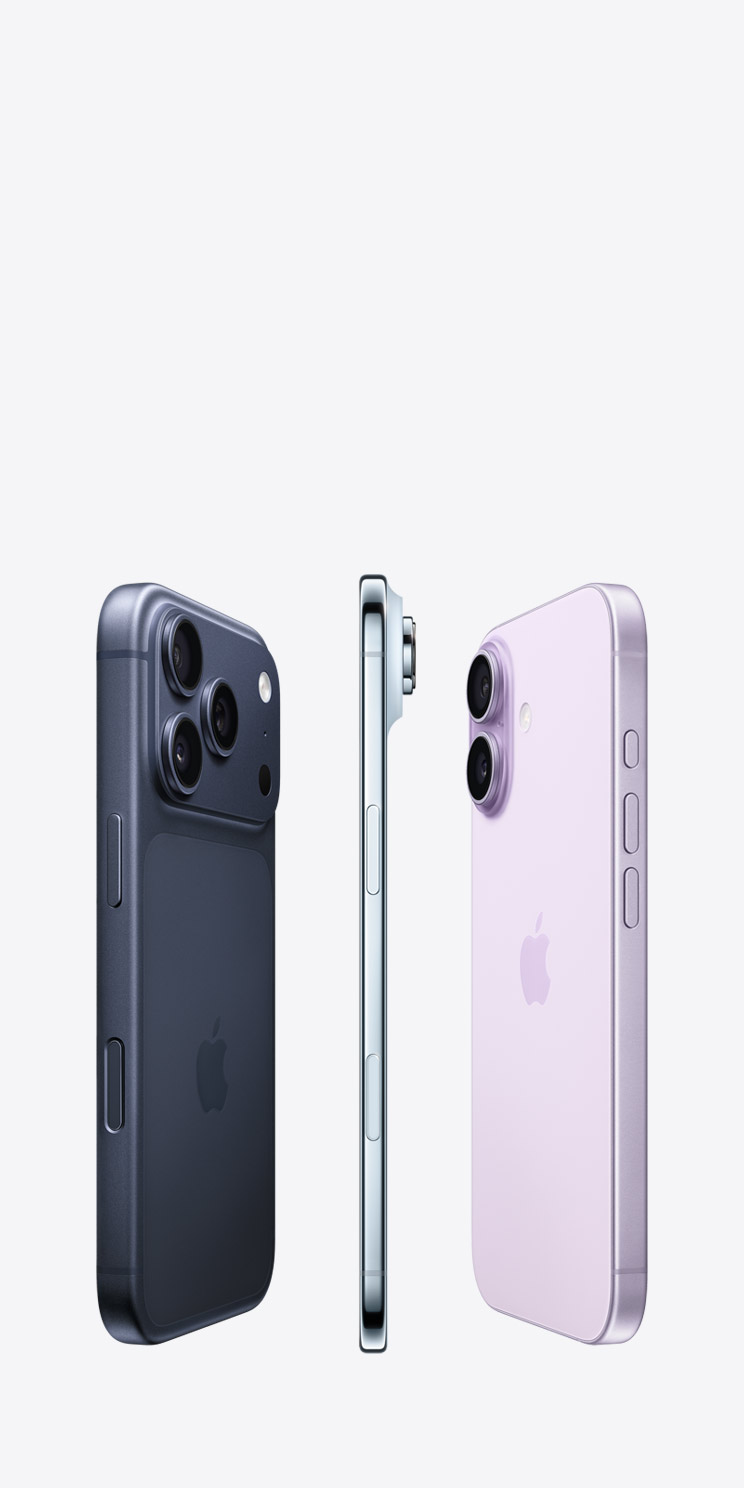
Every month we meet customers who bought a 'bargain' iPhone from a classifieds listing, only to discover it runs a re-skinned version of Android. The clones look right at arm's length — the box, the icons, even the weight. The good news: no clone survives five minutes of real checks.
Check the serial number first
Go to Settings, then General, then About, and compare the serial number with the one printed on the box and tray. Then enter it at Apple's official coverage checker (checkcoverage.apple.com). A genuine device shows its model, purchase date and warranty status. A clone either fails or shows a different device entirely.
If the seller won't let you open Settings before paying, walk away. That is the single strongest signal.
Look for the tells clones can't hide
FaceTime and iMessage activation is the fastest test — clones cannot register with Apple's servers. Try the App Store: clones open a lookalike Android store. Check the screen edges for a stuck-on glass layer, and the camera bump for misaligned lenses.
Finally, connect the phone to a Mac or PC. A genuine iPhone is recognised immediately by Finder or iTunes; clones show up as a generic media device.
Or skip the risk entirely
Every device ELTECH sells — new or pre-owned — is serial-verified against Apple's database, inspected on 38 points, and backed by our warranty. If you're ever unsure about a private deal, message our specialist on WhatsApp and we'll help you check it for free.
Questions about this article?
Our specialist answers on WhatsApp, usually within minutes.